The map surface
What each region of an open map is for, and which controls change what you see rather than what is there.
An open map fills the screen, with the main controls arranged in panels around it.
The map itself
The centre is the map. You pan by dragging empty space and zoom with the scroll wheel or the viewport controls.
Two things are worth knowing early:
- Panning and zooming are yours alone. Moving around does not move anyone else's view, even though you are both editing the same map.
- Position is shared. Moving a node is an edit, and everyone sees it.
Along the bottom: the toolbar
The toolbar holds every tool that places something, plus the simulation controls.

| Tool | Key | Places |
|---|---|---|
| Select | V | Nothing — the default pointer |
| Focus | F | Nothing — a reading tool, below |
| Node | N | A plain node with a title |
| Text | T | Free text on the map |
| Binary probability | N B | A probability node |
| Distribution | N D | A range |
| Parameter | N P | A stated number |
| Formula | N F | A computed value |
| Base rate | N R | Historical rows |
| Metaculus question | M | An imported question |
The forecast kinds share the N prefix on purpose: one key arms the node tool, and a second letter says which kind. Stopping after N gives you the plain node.
The same set appears in the right-click menu on empty map, so you never have to remember a key.
Run simulation sits at the end of the toolbar. It is disabled when the map has nothing it can evaluate, and it names the reason when it is.
On the right: the inspector
The inspector shows whatever you have selected. It opens when you click a node or a connection and closes when you click empty map. Select several nodes and it offers just a colour, which paints them all. Closing it with its minimize button puts it away for that selection only; the next thing you click opens it again.
To keep it open with nothing selected, open it yourself with the inspector button or ]. It then stays open until you close it. A red dot on the closed inspector button means the map's forecast does not compile.
It offers a section only when the selected thing has something to show in it:
- Inspector — always. What the selected thing is: title, type, description and colour, and for a forecast node its reference code, unit and value. For a connection, its relationship type, label, impact and strength, with its arrow, line style and the sides it attaches to folded below. Anything wrong with a node's forecast is listed at the top — except on a formula node, where it heads the Formula section instead.
- Forecasting — the predictions people have made, on a node that takes them.
- Formula — a formula node's formula, with a suggestion on request.
- Info — what you look up rather than change: who created the node or connection and when, a node's ID, and where it came from — a Metaculus question's source and text, or the question a node was turned into.
With nothing selected, the inspector shows the project: its description, the connection style, and every problem on the map. That is the fastest way to find out why a map is not producing a number.
The section with the problems carries a status
Its label turns red while the selected node's forecast does not compile, so you can tell something is wrong from any section. A node with nothing wrong shows no status at all.
On the left: chat
The assistant panel. It can read the map, answer questions about it, and propose changes.
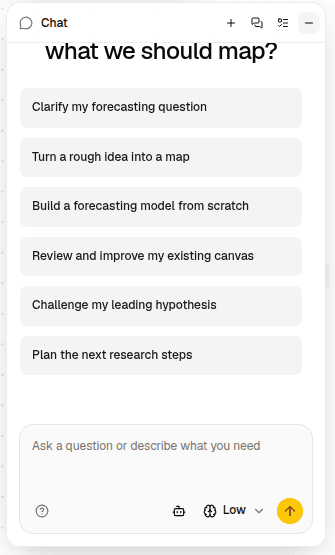
Whatever you have selected on the map is offered to the conversation automatically, so "explain this node" works without you describing which node.
Top left and top right
The project title sits top left, with the menu for renaming, duplicating, and deleting.
Top right holds the controls that are about the project rather than the map: who else is here, sharing, and Versions, which opens the timeline of saved states in the left column.
Bottom right: viewport and history
Zoom in, zoom out, and fit — plus undo and redo, and the minimap.
Undo is your own. It walks back your edits in this session, not your collaborators'.
Reading a crowded map
Two tools change what you can see without changing what is there.
Hover works with no tool armed. Resting on a node rings it and lights what it connects to; resting on a connection thickens it and rings both ends.
Focus is the deliberate version. Arm it with F, click a node, and the map dims everything that is not answering your question about that node. A selector above the toolbar says which question — neighbours one connection away, or the chain the node feeds into. Pressing F again steps through the modes. Escape or a click on empty map gives the whole map back.
Neither tool edits anything, so both are available whether or not you can edit the project.
When you can only read
Opening a project you do not have edit rights to gives you the same map, minus the tools that would change it. Select and Focus remain, because both only read.